Live Playback
When you start any Beat Maker or Fill Maker drill, the playback screen shows your pattern in real time as you play. Choose between Grid view and Notation view — the current beat position is highlighted as it moves through the pattern.
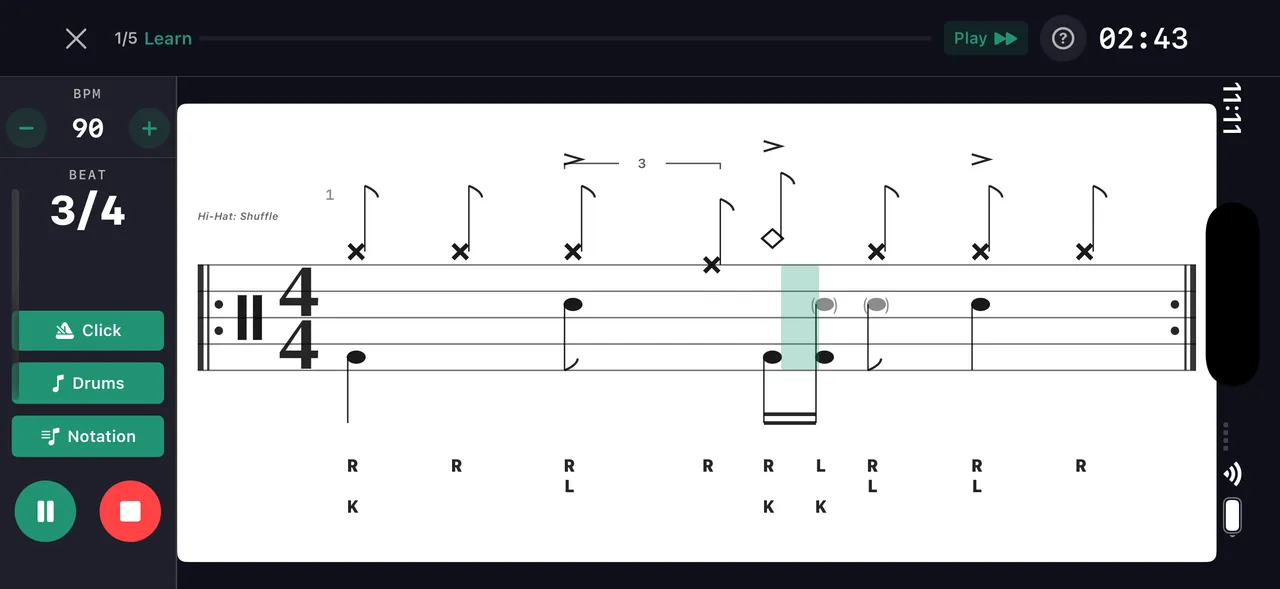
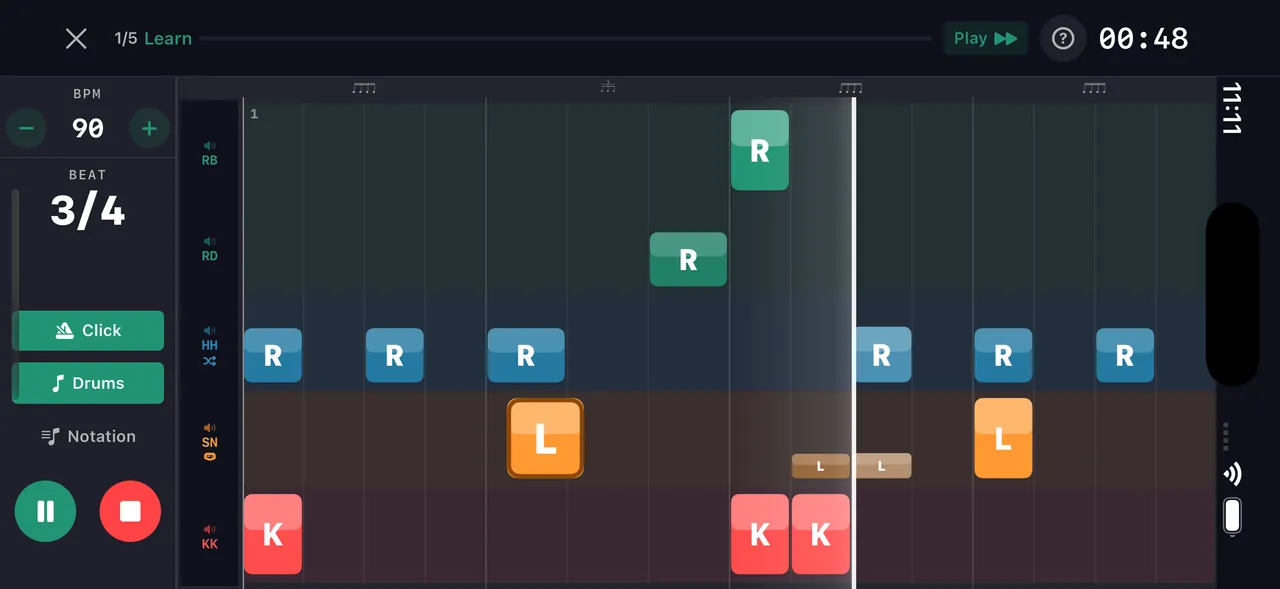
Grid view
Shows every voice (CR, HH, SN, KK, etc.) as labeled rows, with each hit as a colored cell. Sticking is color-coded: right-hand hits are blue, left-hand green, kick orange, and both-hands purple. The playhead moves left to right across the bar. Best for patterns with complex sticking or independence work — you can see exactly which hand plays each note.
Notation view
Shows the pattern as standard drum notation — noteheads on the staff, x-noteheads for cymbals, accent marks above accented hits, sticking letters below. A cyan playhead line moves across as the pattern plays. Best for players who read music or want to build that skill — the notation view is exactly what you'd see in a drum book.
Sidebar stats
While the drill runs, the sidebar keeps you oriented without breaking focus: tempo rows showing the current BPM, plus beat and segment indicators so you always know where you are in the bar and where you are in the drill.
Learn mode
New patterns start in Learn mode and step you through Learn → Play → Performance: hear and watch the pattern first, play along with full support, then perform it with less hand-holding. Every run starts with a count-in so you're never guessing where beat one lands.
Voice muting
Mute individual voices during playback — kill the app's snare and supply your own while the kick and hi-hat keep going, or strip the pattern down to one limb at a time to isolate the part that's fighting you.
Controls
Tap Pause to pause without losing progress. Tap Stop to end the drill and see your results. The Skip button lets you skip between segments in any multi-segment drill or session.
Switching views mid-drill
Tap the Grid / Notation toggle in the top right to switch views while the drill is running — you don't need to stop and restart.
Tips
- Use Grid view when learning a new sticking — seeing which hand plays each note is essential early on.
- Switch to Notation view once you know the sticking to build music-reading fluency.
- Run the same pattern across multiple sessions and let your streak build — consistency over time is what moves the needle.