Drum exercise worksheets,
engraved and ready to print.
Build an exercise up to 64 bars, decide bar by bar whether it shows sticking or counting syllables, and export it as a real sheet-music PDF. The handout and the playable pattern are the same thing.
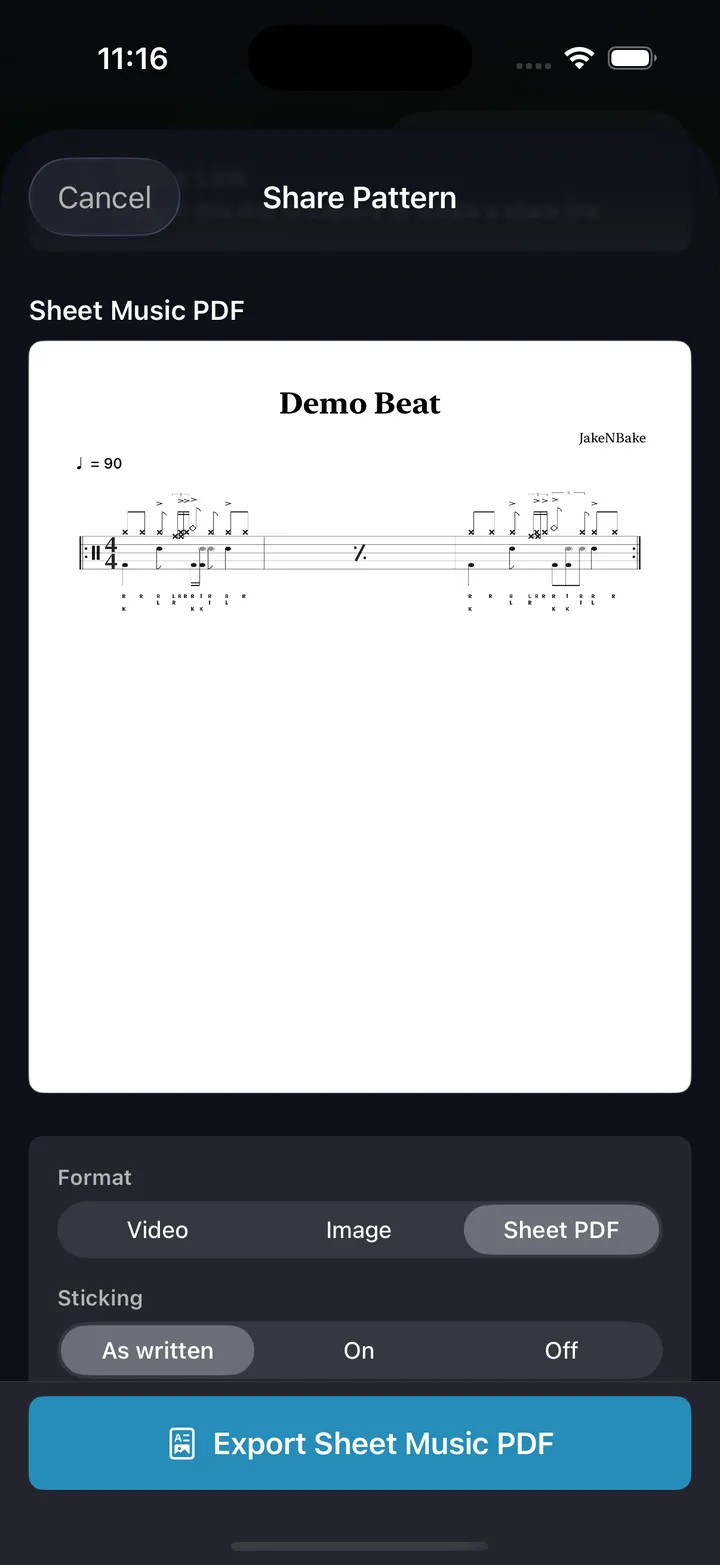
What comes out of the export
Not a screenshot of a grid. Engraved drum notation on a page, laid out the way a drum book lays it out.
This is what prints: engraved notation, accents, and per-bar sticking letters — from the same engine that renders the PDF.
A4 portrait, multi-page
Vector output at print resolution. Long exercises flow onto as many pages as they need — nothing gets squeezed to fit one sheet.
Four bars per system
Rows of up to four bars, each row filling the full width of the page. A two-bar fill prints as two wide bars, not two small tiles and a lot of white space.
Title and tempo marking
A centered serif title and the tempo at the head of page one, the way a printed exercise is supposed to open.
Sticking letters
R, L, and K above the notes — on the bars you choose, off on the ones you don't. Ghost notes read as lowercase so the dynamics show on paper.
Counting captions
1 e & a under the bars that need it: triplets, sextuplets, 32nds. Set per bar, so the counts can stop where the student takes over.
Your credit on the page
Your DrumShed creator credit sits at the foot of the last page, so a worksheet that gets photocopied around a school still says where it came from.
From blank bar to printed sheet
Four steps, all on the device you already practice on.
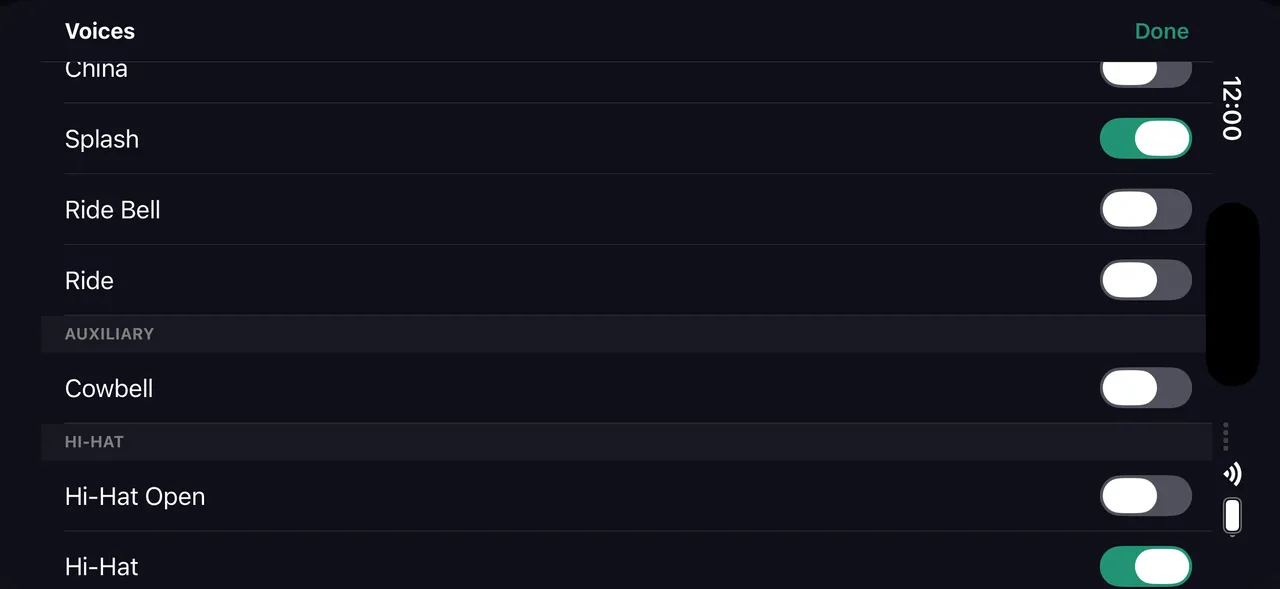
Write the whole exercise
A pattern can run up to 64 bars, so a worksheet is a full exercise — an eight-bar phrase, a page of sticking permutations, a groove with its four variations — not a single bar with a repeat sign.
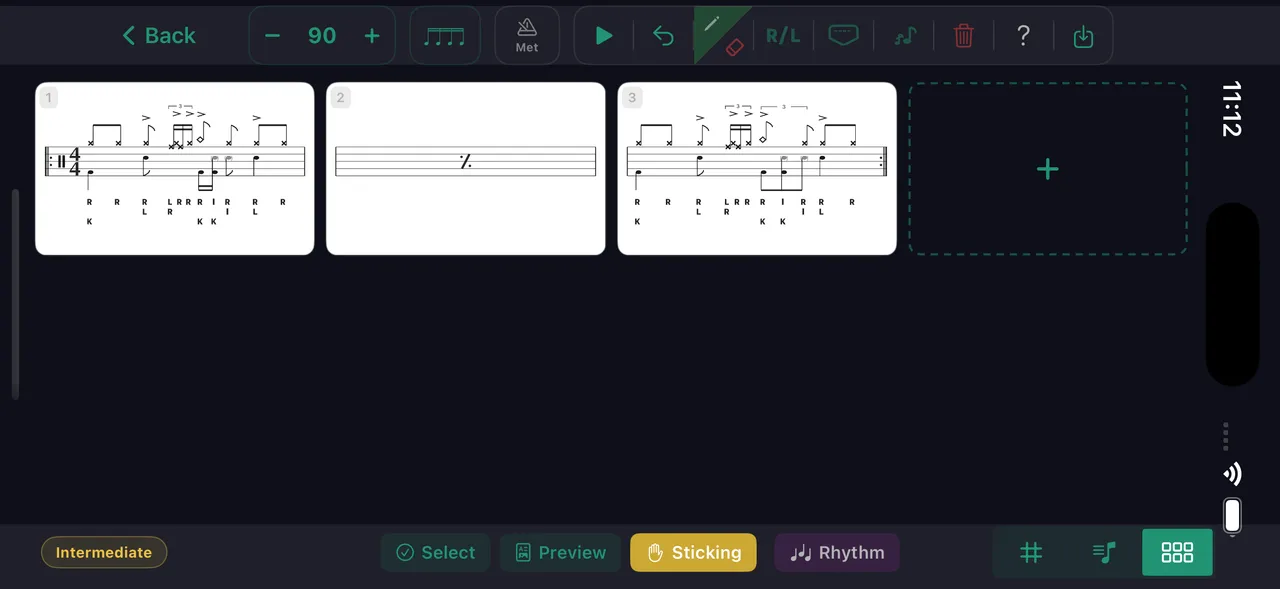
Lay the bars out in Arrange
Arrange shows every bar as a notation card. Drag to reorder, tap one to jump back into editing it, and select a run to copy, paste, duplicate, or delete. Reordering the page is a drag, not a rewrite.
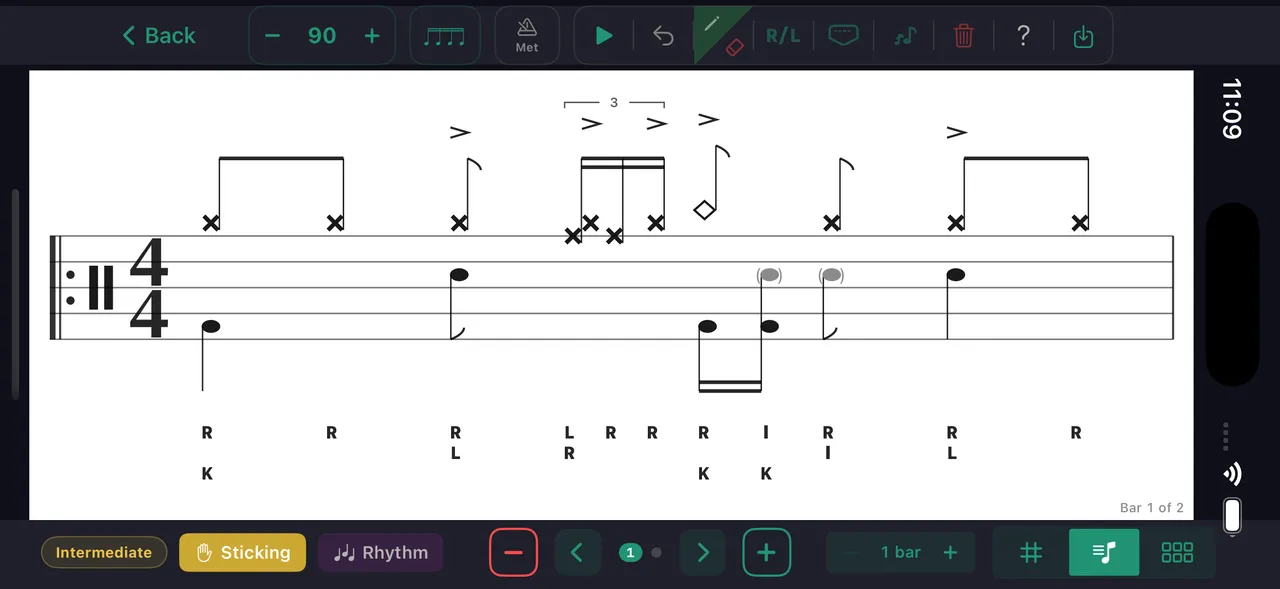
Set sticking and counts per bar
Each bar decides for itself whether it prints the sticking letters and the counting caption. Counts on bar one, nothing after it. Sticking only on the bar you are teaching this week. The choices save with the pattern.
Export the PDF
Engraved sheet music on A4 portrait pages — title and tempo marking at the top of page one, up to four bars per system, your creator credit at the foot of the last page, as many pages as the exercise needs.
The same exercise, two different worksheets.
Sticking letters and counting captions are usually all-or-nothing: either the whole chart is covered in R and L, or none of it is. Here they are a property of each bar.
So one exercise can be a beginner sheet and an intermediate sheet without being rewritten. Turn the labels on for the bar you are introducing, off for the bars they already own. Turn every bar on or off at once when you want the plain version.
- A switch per bar for sticking, and a switch per bar for counting syllables
- Toggle one bar from the notation editor, or from that bar's card in Arrange
- Stored with the pattern — it still reads that way when you reopen it next term
- Honored in the editor, in live playback, and in every image, video, and PDF export
- An export can override the whole sheet for one print without changing what the pattern says
Exercises, not one-bar loops.
Most pattern tools give you a bar and a repeat. A real exercise is longer than that: a phrase that develops, a groove and its variations, sixteen bars of a sticking permutation that has to be read straight through.
Patterns here run to 64 bars, and Arrange gives you the whole thing at once as a grid of notation cards you can move around.
- Up to 64 bars in a single pattern
- Drag a bar — or a selected run of bars — to a new position
- Copy, paste, duplicate, or delete a run of bars
- Tap any card to jump straight back into editing that bar
- Notation view shows one bar at a time, or up to eight across
- Mixed meters and per-beat subdivisions survive the rearranging
Six worksheets worth printing
What teachers actually do with a per-bar label switch and a PDF button.
Counts on the first bar only
Print the counting syllables on bar one so the student has the reading anchored, then leave the remaining bars bare. They work out the rest instead of following the letters.
Sticking on the bar you are teaching
A sixteen-bar sticking study where only bars 9 through 12 carry R and L. The rest is the same exercise with the training wheels off.
One page per student
Build the exercise once, then print a version with the labels on for the beginner and a version with them off for the student who has had it for three weeks.
Sight-reading sheets
A multi-bar phrase with no sticking and no counts prints as a clean reading exercise. The student reads it on paper; the same pattern plays back in the app when they want to hear how it should sound.
A packet, not a page
Longer exercises flow onto as many pages as they need. Four bars per system keeps the engraving readable at a music stand distance.
Paper and the app together
Hand over the PDF and share the same pattern as a link. They read the chart, then open it on their phone and hear it at whatever tempo they can manage today.
How the sheet-music export works
Open any beat or fill you have built and choose Export Sheet Music PDF. The pattern renders as engraved drum notation onto A4 portrait pages: a centered title and the tempo marking at the head of page one, then rows of up to four bars, each row filling the full width of the page. A one-bar fill spans the row on its own; four bars split it evenly. Longer exercises continue onto further pages, and your creator credit sits at the foot of the last one.
What appears above and below the notes is up to you, bar by bar. Sticking letters — R, L, and K, lowercase on ghost notes — and counting captions like 1 e & a are separate switches on every individual bar, set either from the notation editor or from that bar's card in Arrange. Those settings are saved on the pattern itself, so the same exercise reads the same way every time you open it, and they carry through to live playback and to image and video exports too. When you only want a different version for one print, the export sheet can force the labels on or off without touching the pattern.
The PDF is vector, so it stays sharp printed or projected, and it is a normal file — mail it, drop it in a shared folder, or print a stack for the week. The pattern behind it stays playable in the app: share the same exercise as a link and the student can open it, slow it down, and loop it while they read the sheet you handed them.
DrumShed for Teachers
Printing the worksheet is the start. A teacher companion is coming that assigns it with a due date and shows you what each student actually practiced — no honor-system log.
Every drummer needs
a home base.
Print the exercise. Share the pattern.